
Scriptario turns audio and video into searchable text, then helps you turn that text into summaries, reports, and answers. This guide follows the product from the first upload to the finished result.
Your workspace
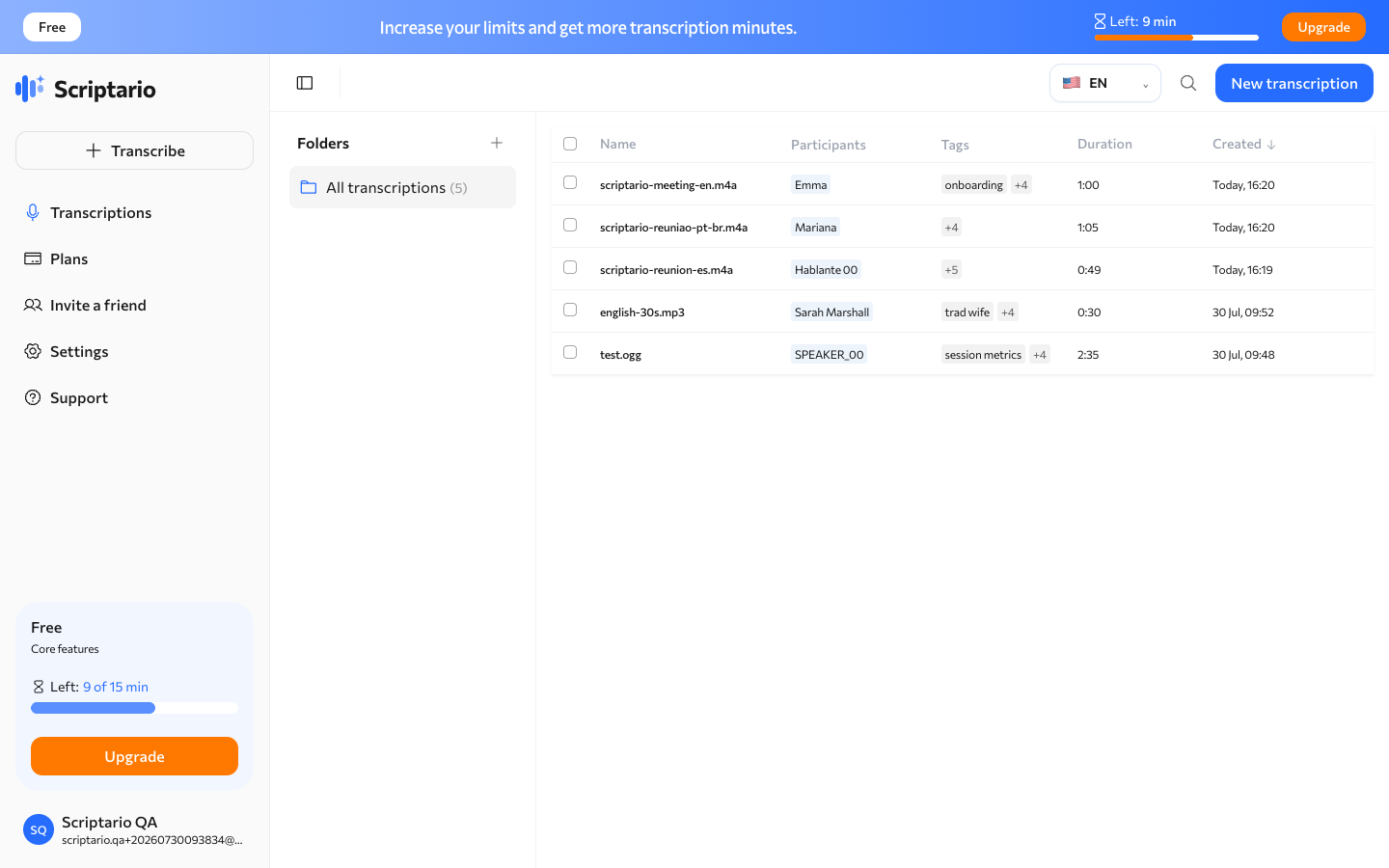
The sidebar is the quickest way around Scriptario. New transcription starts a new job. Transcriptions keeps every recording and folder in one place. You can also open plans, referrals, settings, and support without leaving the workspace. Use the language menu at the bottom of the sidebar to keep the interface in your preferred language.
Create a transcription
Choose New transcription. Scriptario accepts a file from your device or a public YouTube link. Before starting, you can select the spoken language and speaker count, or leave both on automatic detection.
Upload a file
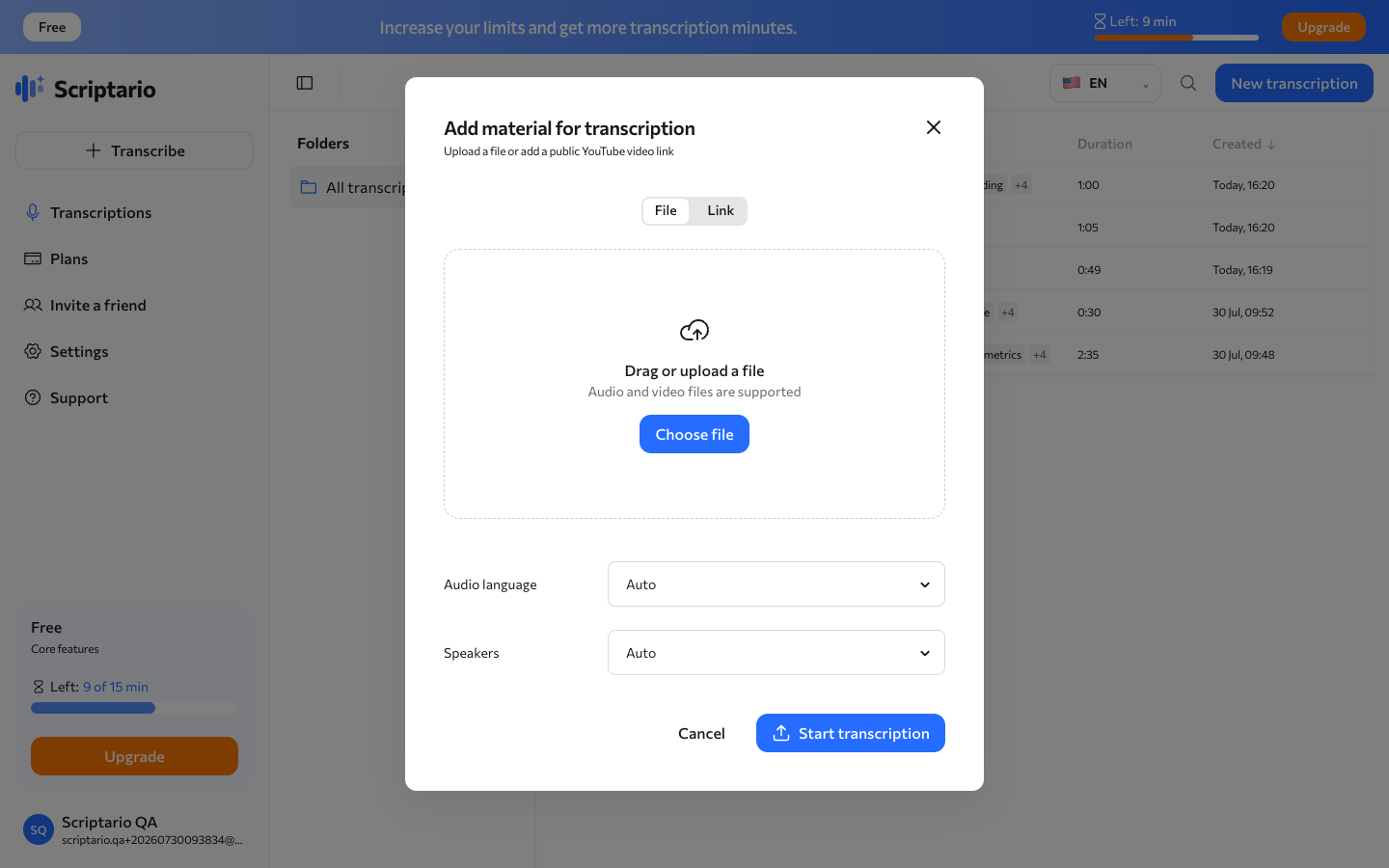
Drag an audio or video file into the window, or choose it from your device. Scriptario supports common audio and video formats and uses multipart upload for larger files. The progress indicator follows the actual upload, so you can keep the page open until processing begins.
Paste a YouTube link
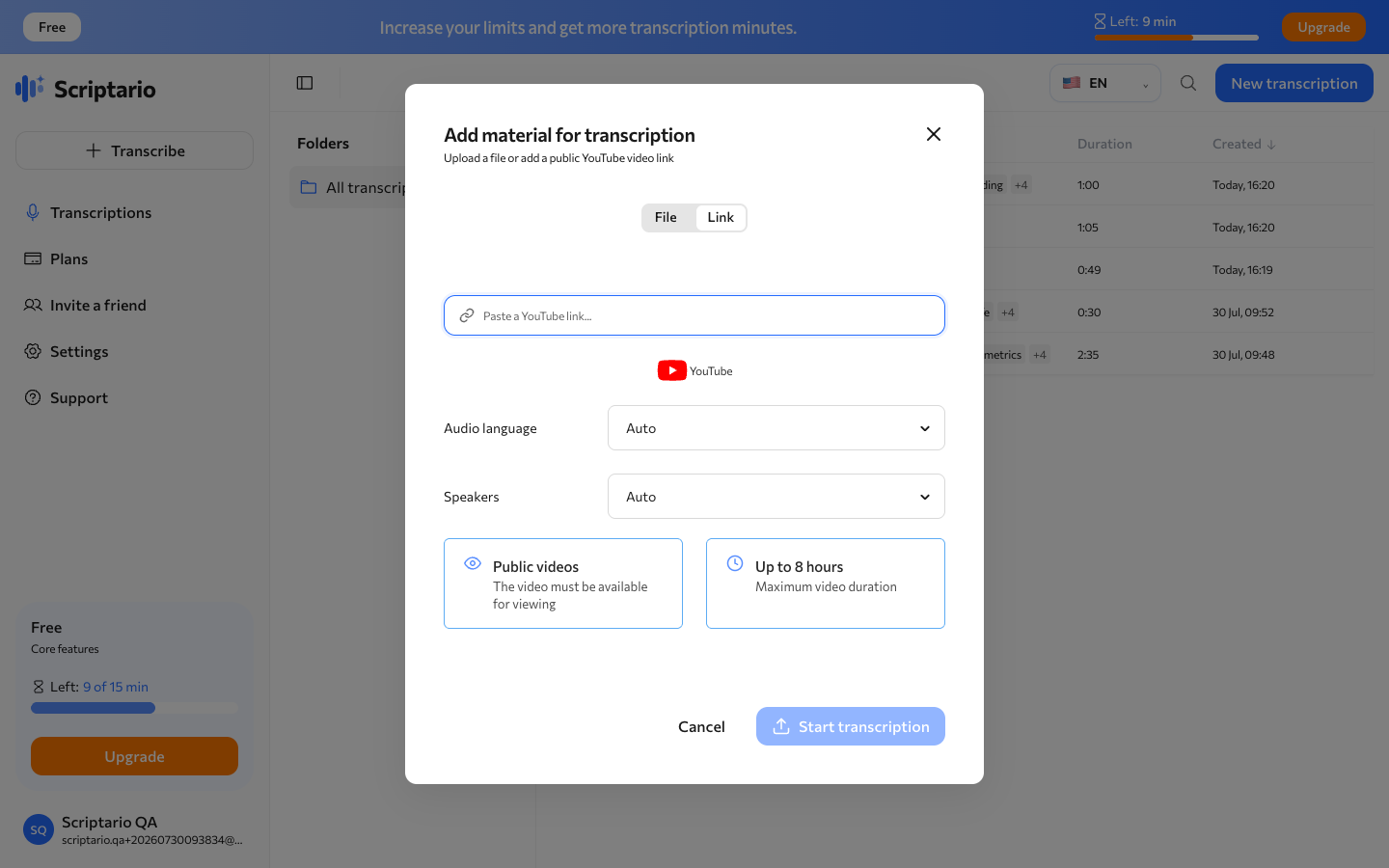
If the recording is already on YouTube, paste its public URL instead. Scriptario downloads the media and creates the same transcript you would get from a local file. The video must be publicly accessible.
Organize your transcriptions
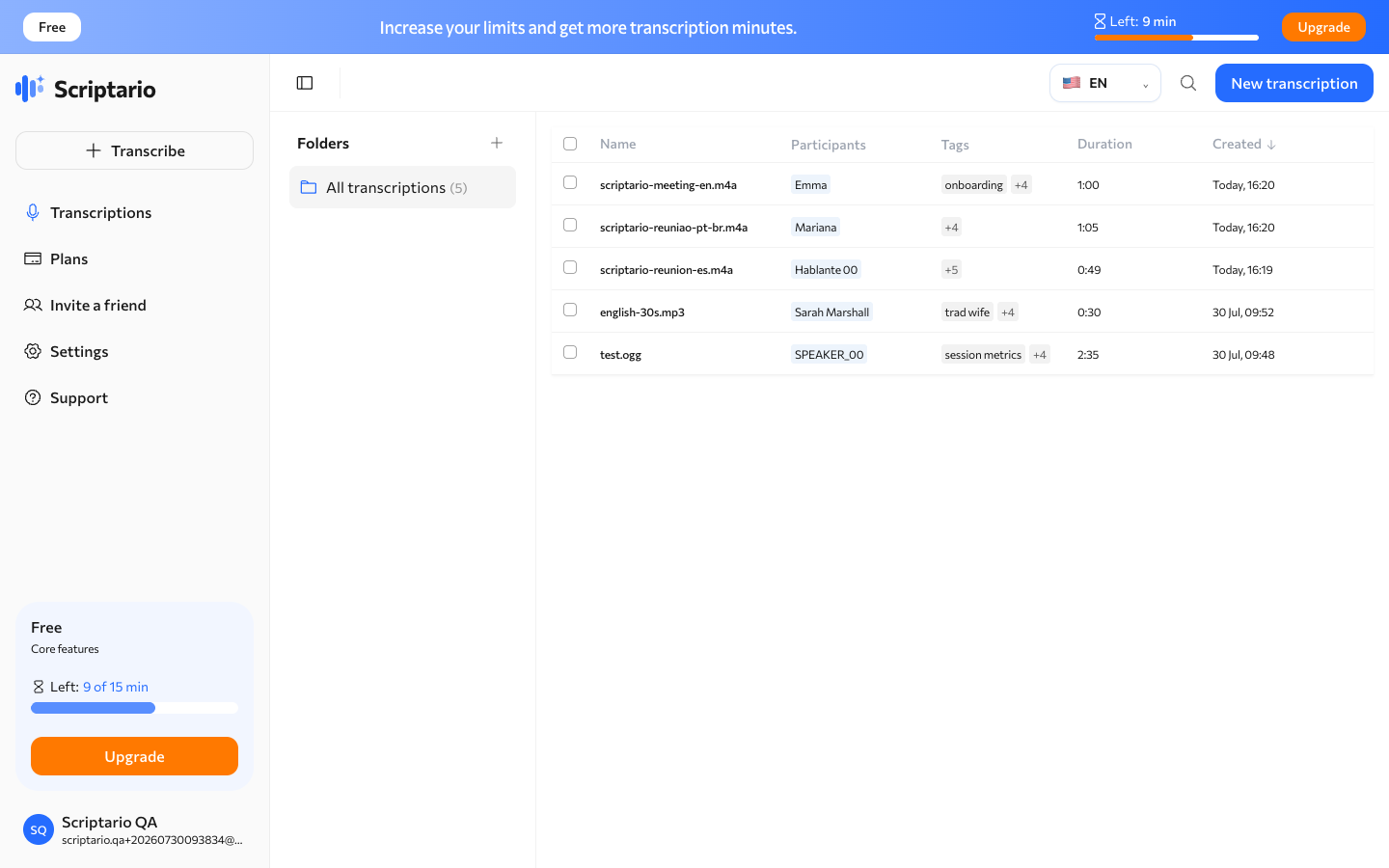
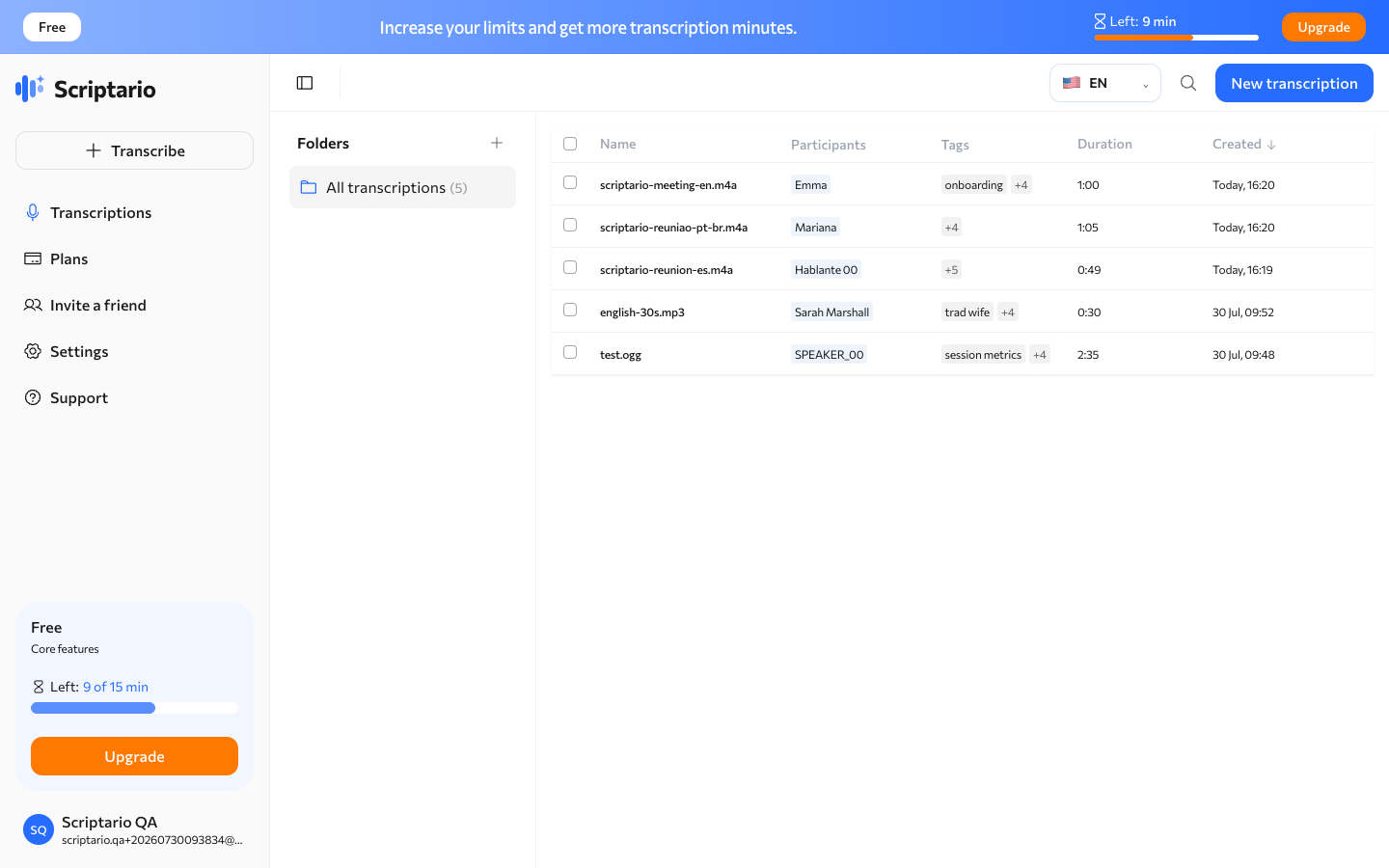
The transcription list shows processing status, duration, date, and folder. Create folders for customers, interviews, classes, or projects, then move recordings between them. Search helps you find a recording by title without opening every item.
Read and edit the transcript
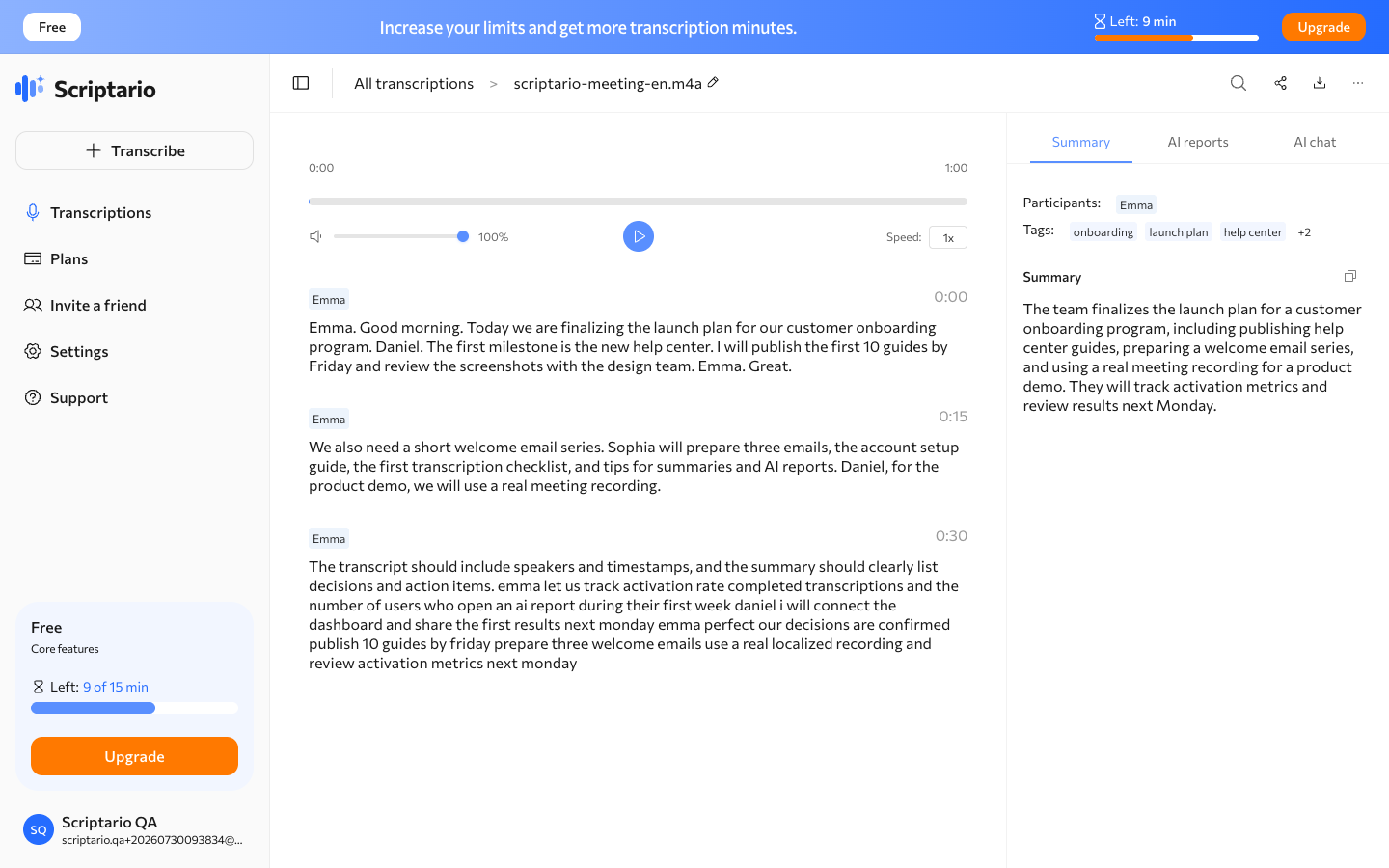
Open a completed item to see the transcript with timestamps and speaker labels. Click in the text to correct a name or phrase. The audio player stays connected to the transcript, so you can jump to the relevant moment instead of replaying the whole recording.
Get an automatic summary
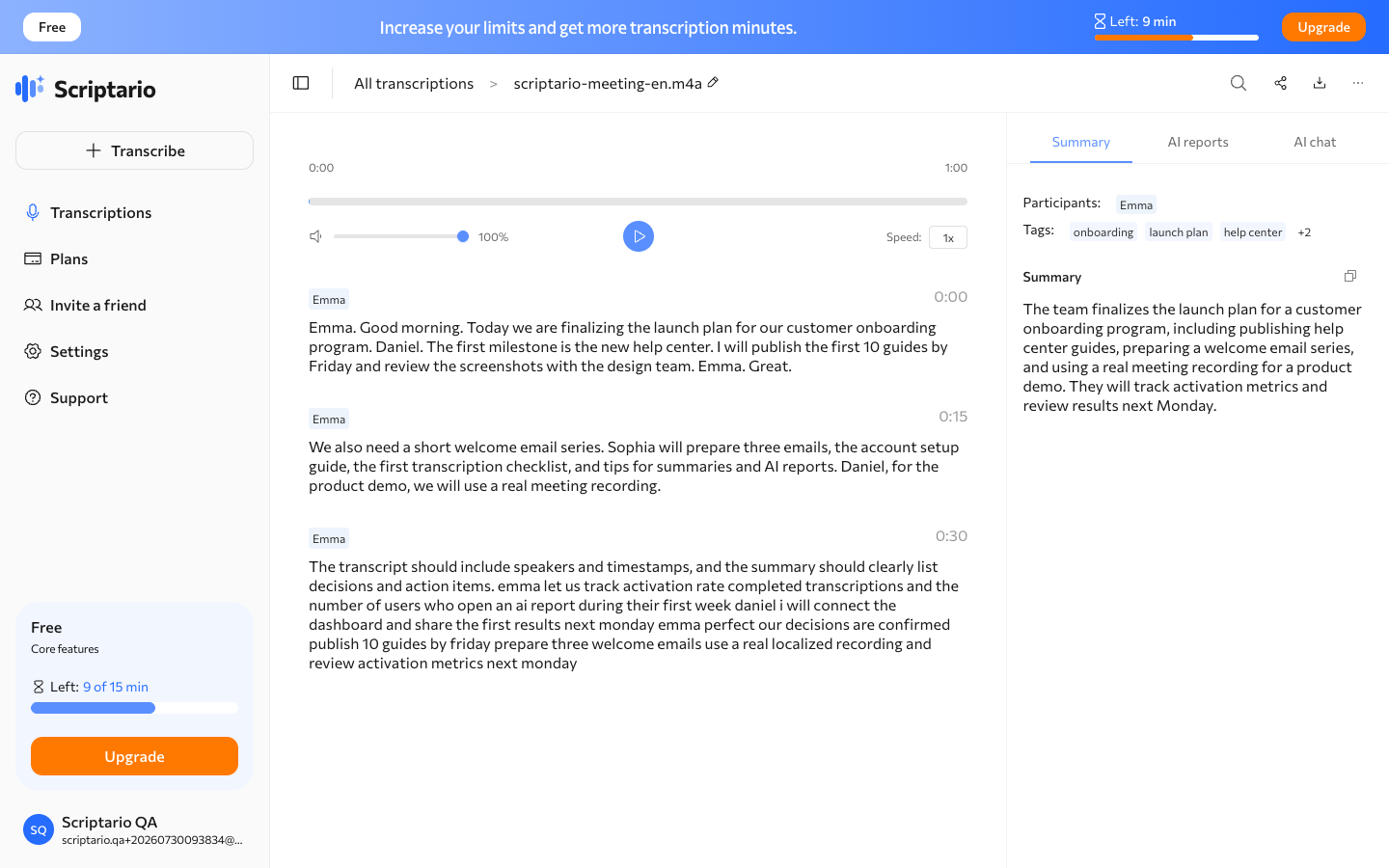
The Summary tab condenses the recording into the main topic, participants, key points, and conclusions. It is useful when you need the outcome of a meeting or interview before reading the full transcript.
Create AI reports
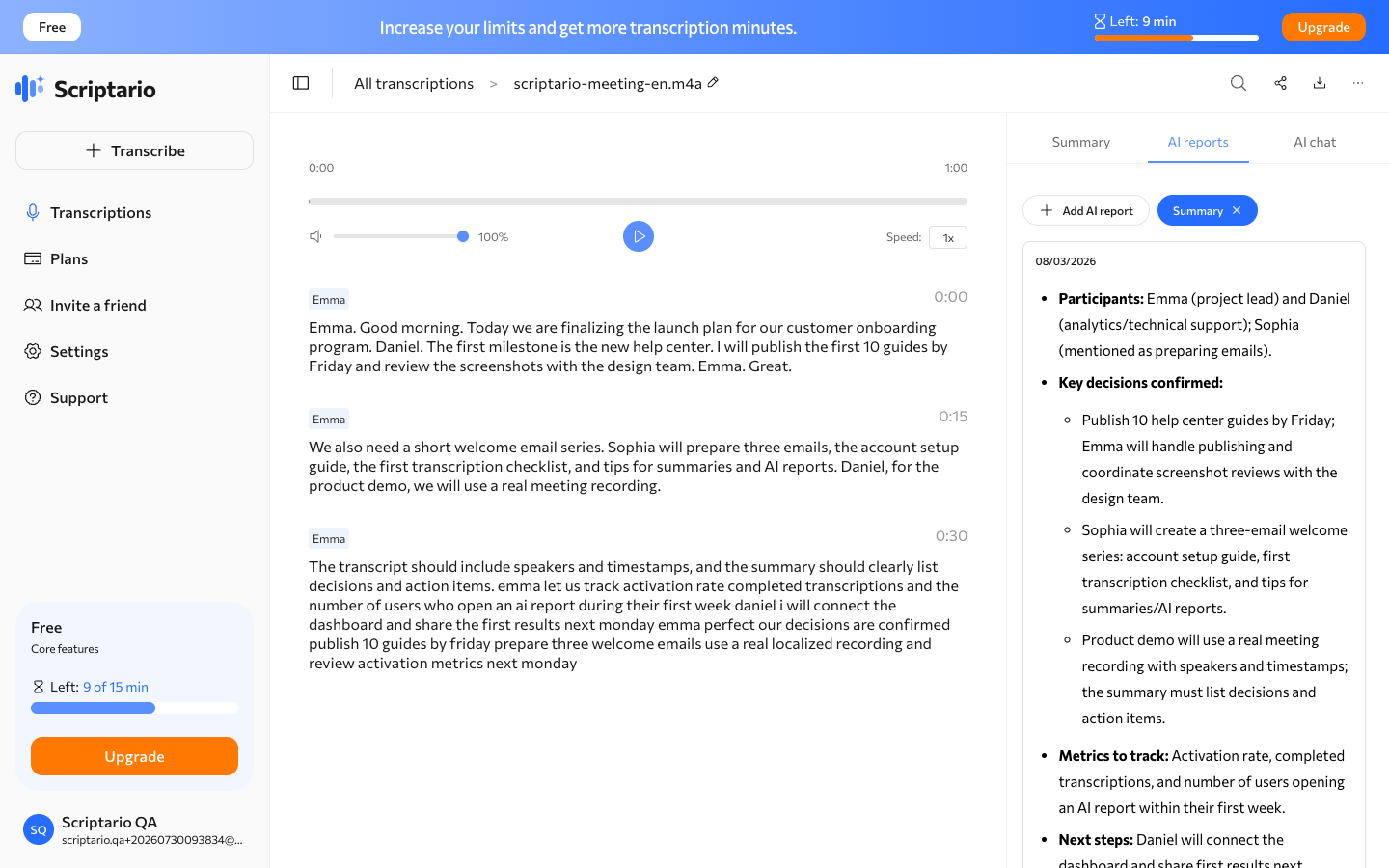
Reports turn the same transcript into a document for a specific task. Choose a template for meeting notes, customer research, sales, content, recruiting, education, or product work. Scriptario follows the selected structure instead of returning another generic summary.
Ask questions in AI chat
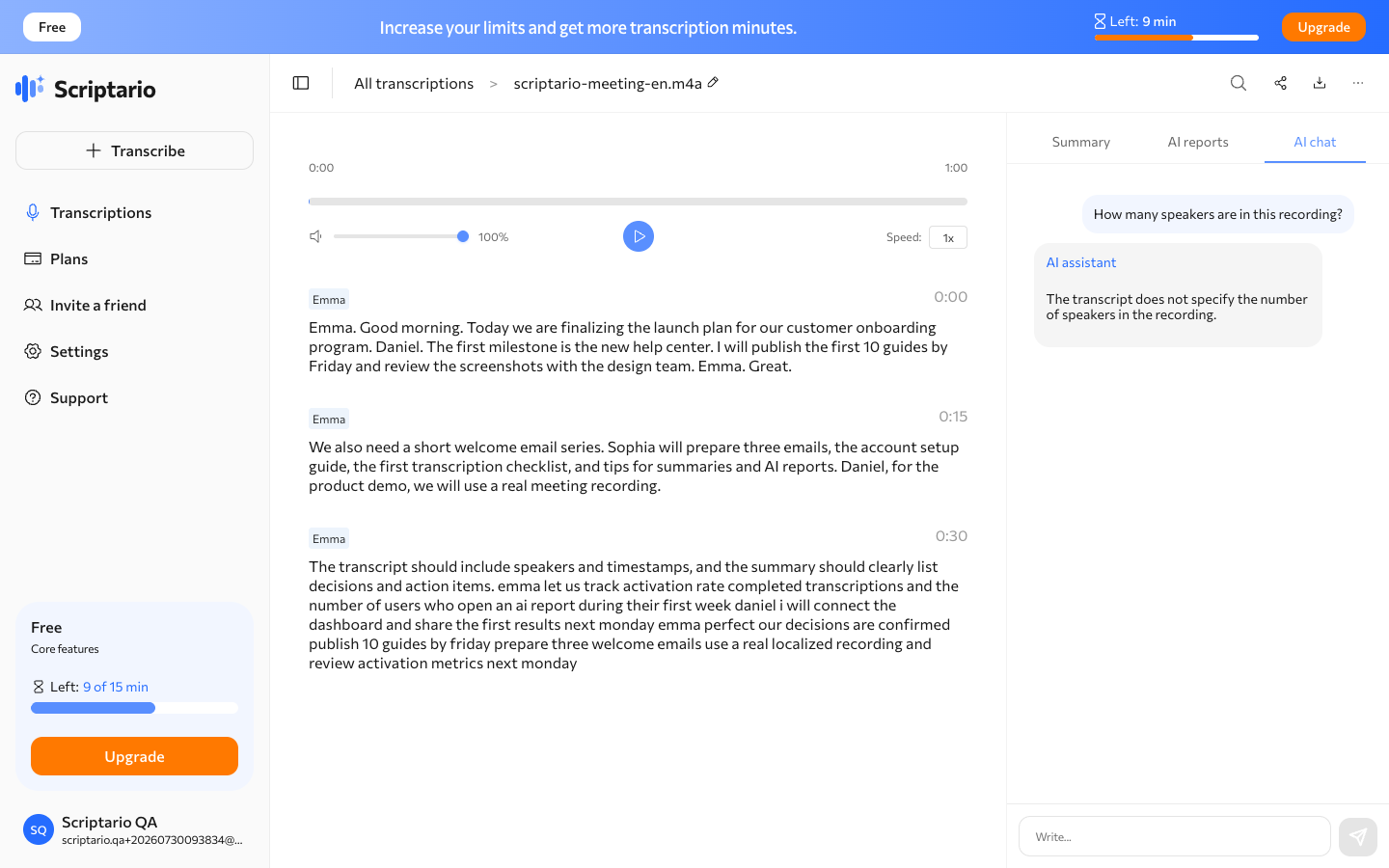
Use AI chat when you need one precise detail. Ask what was decided, which tasks belong to each participant, what objections appeared, or where a topic was mentioned. Answers are grounded in the open transcript.
Invite teammates and friends
The referral page contains your personal invite link and the current program terms. Copy the link, share it, and track invited users from the same screen.
Manage your account
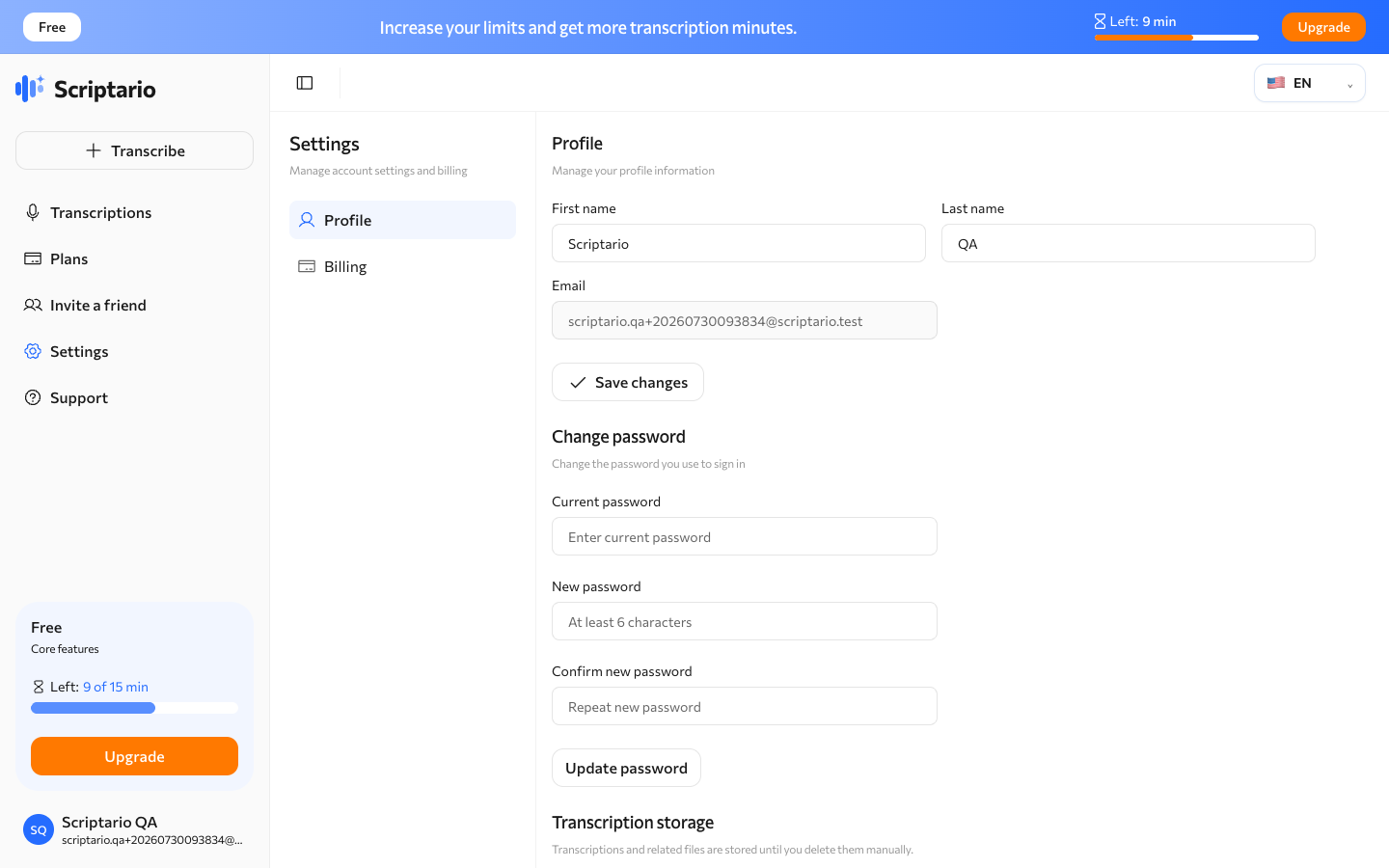
Settings contain your profile and account preferences. Update your name, email, password, and interface language here. Billing self-service opens through the secure customer portal when a subscription is active.
Choose a plan
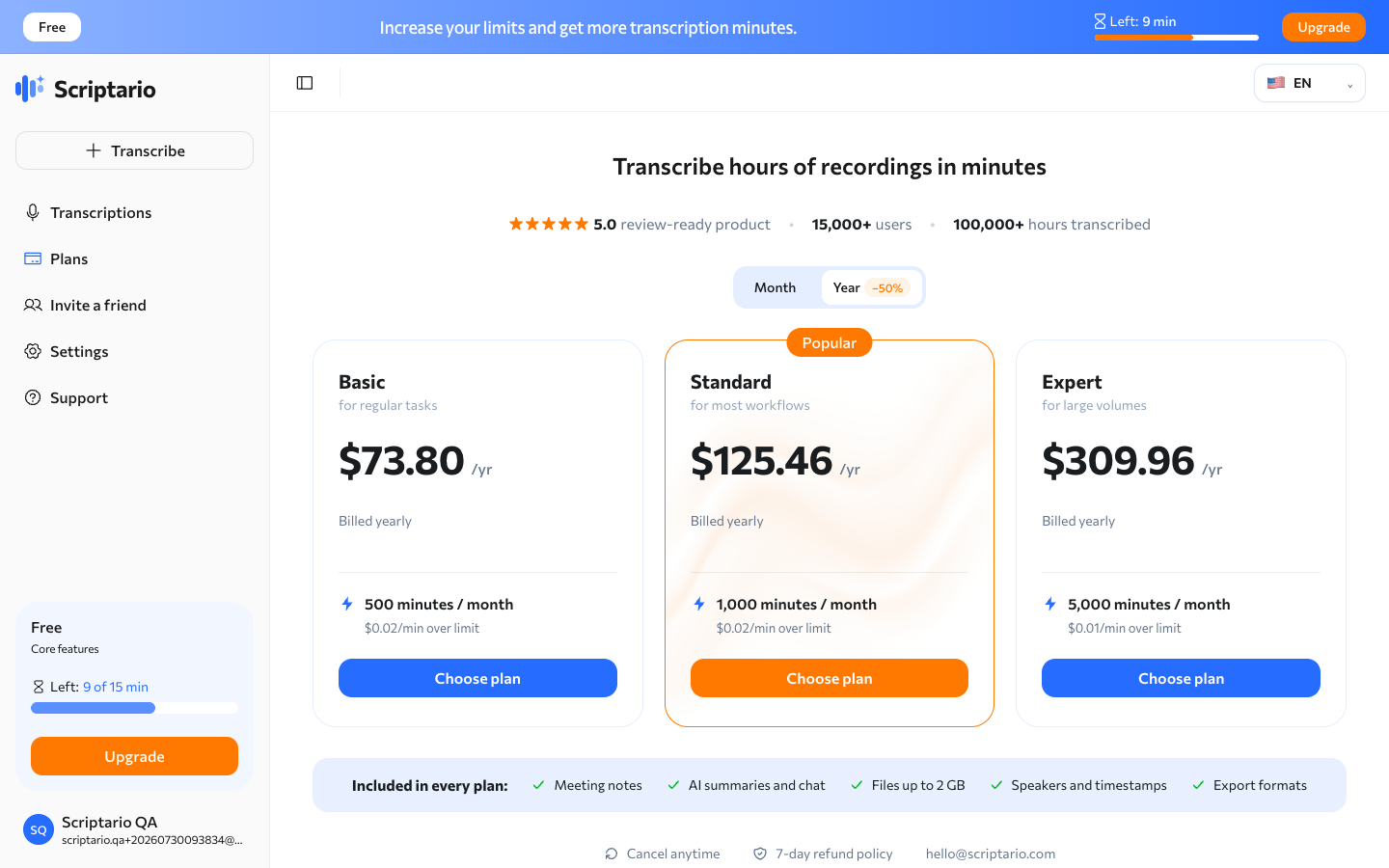
Scriptario has a free allowance and three paid plans: Essential, Professional, and Premium. Switch between monthly and yearly billing, compare included minutes, and open secure checkout from the plan you choose. Local prices and available payment methods are determined during checkout.
Contact support
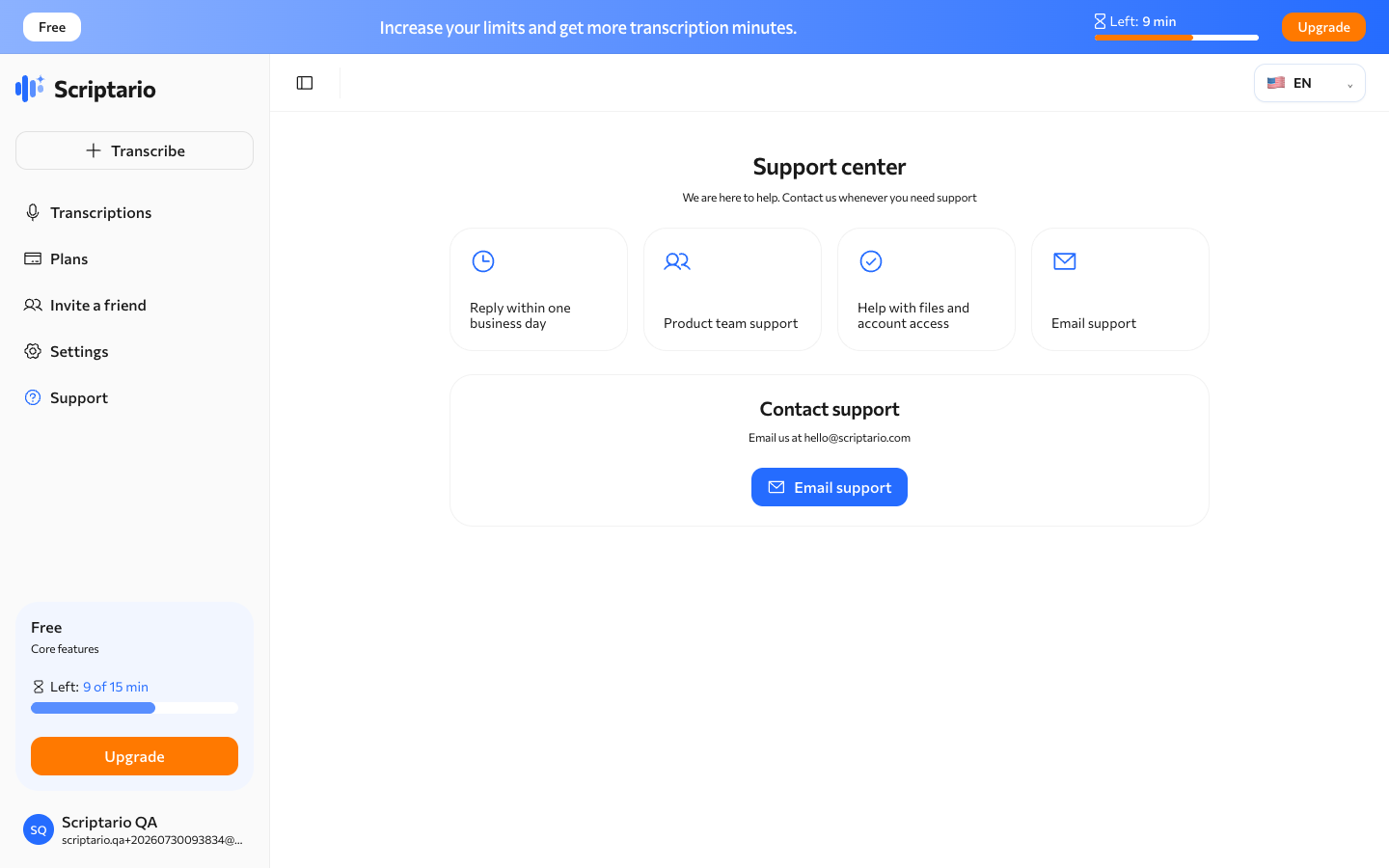
Open Support when you have a question about an upload, transcript, subscription, or account. Describe what happened and include the transcription title when relevant, so the team can find the case faster.
The normal workflow is simple: upload a recording, wait for the transcript, review the text, then use the summary, reports, or chat for the result you need. Your files and finished transcriptions stay together in the same workspace.